
- My hardware in the Minisforum HX99G
- My first troubleshooting attempts
- The crucial tip came from another HX99G user
- Important: the Ryzen 9 6900HX officially supports DDR5-4800
- Why could replacing the RAM still make such a big difference?
- Reading RAM information in Windows with PowerShell
- Checking RAM speed in Task Manager
- Why 64 GB of RAM does not automatically mean the memory works properly
- Pay attention to dual-channel RAM
- Choose SO-DIMM when buying new RAM
- Rule out other causes before replacing the RAM
- Use the correct GPU for DaVinci Resolve on the HX99G
- BIOS and drivers can also affect RAM issues
- Why RAM problems can be difficult to identify
- My recommended troubleshooting process
- Frequently asked questions about the HX99G and RAM
- Does the Minisforum HX99G support DDR5-5600?
- Why did my PC still become faster after replacing the RAM?
- Is 32 GB of RAM enough for DaVinci Resolve?
- How can I test RAM in Windows?
- How can I test memory bandwidth in Windows?
- Should I buy new RAM immediately if DaVinci Resolve stutters?
After I bought a Minisforum HX99G as a second PC for programming, gaming and image and video editing, I was initially very satisfied with the small computer. In normal Windows operation, the system ran quickly and there were no noticeable problems when programming, surfing or editing images.
However, that changed when I worked more intensively with DaVinci Resolve for the first time a few weeks later.
Video clips could hardly be played smoothly within the timeline. It didn’t matter whether effects were activated or deactivated. Even after I created and used proxy media, playback remained extremely slow.
It was particularly noticeable that DaVinci Resolve only achieved around 5.5 FPS when playing my videos.
That was clearly not enough to be able to edit videos sensibly.
Naturally, I initially suspected DaVinci Resolve, the graphics drivers, or the project settings. In the end, however, the RAM turned out to be a decisive factor with my HX99G.
My hardware in the Minisforum HX99G
My Minisforum HX99G is equipped with the following hardware:
| component | Hardware |
|---|---|
| Mini PC | Minisforum HX99G |
| CPU | AMD Ryzen 9 6900HX |
| CPU cores | 8 cores / 16 threads |
| integrated GPU | AMD Radeon 680M |
| dedicated GPU | AMD Radeon RX 6650M |
| Graphics memory | 8GB GDDR6 |
| RAM after replacement | 64GB DDR5 |
| RAM configuration | 2 x 32GB |
| RAM kit (new) | DDR5 FURY |
| specified RAM speed (new) | up to 5600 MT/s |
| Timings of the kit (new) | CL40 |
The HX99G has two DDR5 SO-DIMM slots, making it relatively easy to replace the RAM.
My first troubleshooting attempts
Since the problem was initially only noticed during video editing, I initially didn’t consider the RAM to be the cause at all.
I initially suspected DaVinci Resolve itself.
I updated DaVinci Resolve, reinstalled various graphics drivers, and checked the program’s settings. I also disabled effects and tested proxy files.
Normally, proxy files can significantly speed up playback when editing videos. The original, often high-resolution or highly compressed video material is no longer constantly processed. Instead, the editing program works with a version that is easier to decode.
But that didn’t change anything for me.
Even with proxy files, playback was stuck at around 5.5 FPS.
This was an important indication to me that the actual decoding of the video material may not have been the problem.
The crucial tip came from another HX99G user
After a few days of troubleshooting, I came across a post from another HX99G user who had a very similar problem.
The performance problems disappeared after he replaced the originally installed DDR5-4800 RAM with another DDR5 kit.
Since I had already ruled out most of the other typical causes, I wanted to try this solution too.
I therefore removed the existing RAM and installed a new 64 GB kit made up of two 32 GB DDR5 modules. The new kit is specified for up to 5600 MT/s.
And the problem actually disappeared afterwards.
DaVinci Resolve played my timeline smoothly again. The extreme stuttering was gone and the rest of Windows operation also felt a bit more responsive.
Important: the Ryzen 9 6900HX officially supports DDR5-4800
At this point, however, you have to differentiate between my practical solution and the technical cause.
The AMD Ryzen 9 6900HX officially supports DDR5 memory up to DDR5-4800. The fact that I installed a DDR5-5600 kit does not automatically mean that it will actually operate at 5600 MT/s in the HX99G.
A faster specified DDR5 module can easily run at a lower speed. The memory controller, BIOS, and RAM SPD profiles work together to determine which settings are ultimately used.
The crucial point in my experience is therefore not:
“DDR5-5600 makes the HX99G significantly faster than DDR5-4800.”
Instead, the takeaway is:
“Swapping the originally installed DDR5 RAM for another RAM kit completely eliminated my massive performance issues.”
This is an important difference.
Why could replacing the RAM still make such a big difference?
A difference between DDR5-4800 and DDR5-5600 alone would, in my opinion, hardly explain why video playback suddenly jumps from around 5.5 FPS to normal smooth playback.
Especially since the Radeon RX 6650M in the HX99G has its own GDDR6 graphics memory.
Several other explanations are therefore possible.
| Possible cause | Explanation |
|---|---|
| Incompatibility | Certain RAM modules may function less reliably with a motherboard or memory controller |
| Faulty RAM module | A module can operate unstably without constantly producing blue screens or obvious errors |
| Suboptimal memory timings | The BIOS can select different timings for different modules |
| Dual channel problems | Faulty or different modules can affect memory performance |
| Contact problem | Simply removing and reinserting the RAM can fix bad contacts |
| BIOS memory training | After a RAM change, the memory is recognized and reconfigured |
| Different SPD profiles | A different RAM kit can provide more suitable memory parameters to the BIOS |
| Marginal stability | RAM can seem to work in everyday life and only cause problems under certain loads |
That’s exactly why, if I had a similar problem, I wouldn’t immediately assume that the higher specified speed of the new RAM is the only solution.
Reading RAM information in Windows with PowerShell
Before you buy new RAM, you should first check what is currently installed in your computer.
Under Windows 10 and Windows 11 this works directly with PowerShell.
Open PowerShell and run the following command:
Get-CimInstance Win32_PhysicalMemory | Select-Object DeviceLocator, Manufacturer, PartNumber, Capacity, Speed, ConfiguredClockSpeedThis shows, among other things, the manufacturer, model number, capacity and the storage speed reported by the system.
The output becomes a little clearer with the following command:
Get-CimInstance Win32_PhysicalMemory | Select-Object DeviceLocator, Manufacturer, PartNumber, @{Name="CapacityGB";Expression={[math]::Round($_.Capacity / 1GB, 0)}}, Speed, ConfiguredClockSpeedFor example, the output may look something like this:
| DeviceLocator | Manufacturer | PartNumber | CapacityGB | Speed | ConfiguredClockSpeed |
| DIMM 0 | Kingston | XXXXXXXX | 32 | 5600 | 4800 |
| DIMM 1 | Kingston | XXXXXXXX | 32 | 5600 | 4800 |
This also makes it easy to see why the speed stated on the packaging does not necessarily have to correspond to the speed actually used.
However, depending on the BIOS and SMBIOS implementation, the displayed values may vary. If you want to know more, you can also use programs such as CPU-Z or HWiNFO.
Checking RAM speed in Task Manager
The Windows Task Manager offers an even simpler option.
This can be opened, for example, with:
Ctrl + Shift + EscThen select “Memory” under “Performance”.
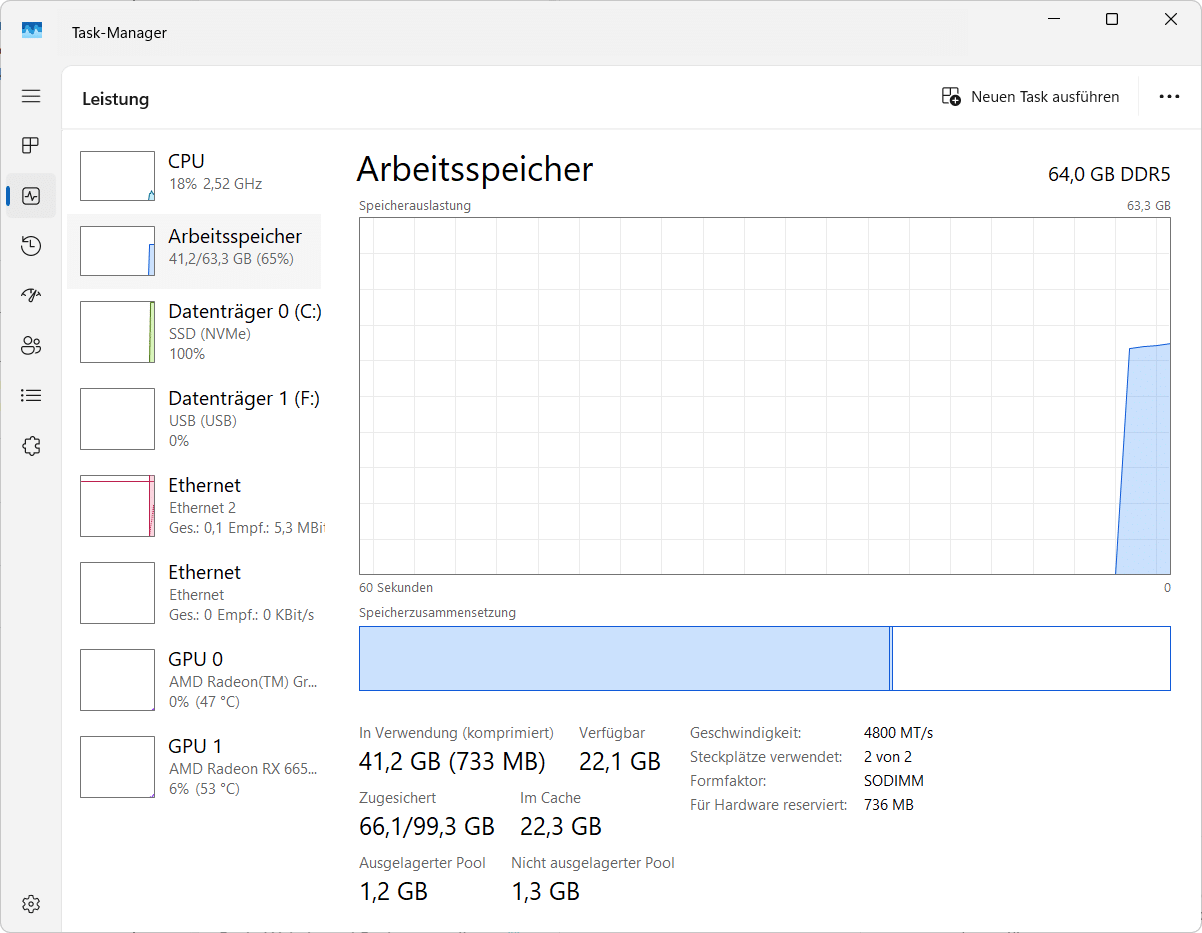
There, Windows usually displays information such as memory capacity, slots used and RAM speed.
This allows you to quickly check whether both modules were recognized after a RAM replacement.
Why 64 GB of RAM does not automatically mean the memory works properly
In my system the amount of RAM was actually more than sufficient.
64 GB is very generous for most video editing projects.
DaVinci Resolve requires significantly less on Windows for normal projects. For more complex Fusion projects, the memory requirement increases, but a computer with 64 GB of RAM should not drop to around 5.5 FPS in timeline playback due to capacity alone.
This shows an important point:
More RAM and working RAM are two different things.
Even a computer with 32, 64 or 128 GB of RAM can have performance problems if the memory controller, RAM modules and BIOS do not work together properly.
Pay attention to dual-channel RAM
With the HX99G I would always use two identical RAM modules as a kit if possible.
My system has two 32 GB modules installed.
This means that both memory channels of the Ryzen 9 6900HX can be used.
Dual channel is particularly important in systems with integrated graphics because the integrated GPU does not have its own graphics memory and has to access the normal RAM.
Although a Radeon RX 6650M with its own VRAM is also installed in the HX99G, the CPU and integrated GPU still benefit from a good memory connection.
Choose SO-DIMM when buying new RAM
The HX99G uses DDR5 SO-DIMM memory.
This is the more compact RAM design that is primarily used in notebooks and mini PCs.
Normal DDR5 DIMM memory for desktop PCs does not fit in the HX99G.
When purchasing, you should therefore pay attention to at least the following information:
| Characteristic | Recommendation |
|---|---|
| Design | DDR5 SO-DIMM |
| Modules | as identical a kit as possible |
| configuration | for example 2 x 16 GB or 2 x 32 GB |
| Memory type | DDR5 |
| speed | faster specified modules can be used, but may be downclocked |
| Voltage and profiles | JEDEC profiles that are as standard-compliant as possible |
| capacity | depending on your intended use |
Rule out other causes before replacing the RAM
Just because the RAM was the cause or the decisive solution for my Minisforum HX99G, that of course doesn’t mean that every DaVinci Resolve problem can be traced back to the RAM.
If timeline playback is jerky, I would first check the following areas:
| Area | What should be checked? |
|---|---|
| Graphics card driver | Test current stable AMD driver |
| DaVinci Resolve | Use current or known stable version |
| GPU selection | check whether the Radeon RX 6650M is used |
| Windows graphics settings | If necessary, set DaVinci Resolve to “High Performance”. |
| Proxy media | Create proxy files as a test |
| Render Cache | Test render cache |
| Effects | Temporarily deactivate color nodes, noise reduction and effects |
| Video format | Check codec, resolution and frame rate |
| Disk | As a test, open the project from a fast internal NVMe SSD |
| temperatures | Check CPU and GPU temperatures |
| RAM | Check capacity, modules, dual channel and stability |
| BIOS | check whether a suitable current version is available |
Use the correct GPU for DaVinci Resolve on the HX99G
The Minisforum HX99G has two graphics units.
The Ryzen 9 6900HX comes with a Radeon 680M as an integrated GPU. There is also a Radeon RX 6650M as a dedicated graphics card in the computer.
The much more powerful Radeon RX 6650M should normally be used for DaVinci Resolve.
In Windows 11 you can control this via the graphics settings.
DaVinci Resolve can be assigned to a high-performance graphics card.
Within DaVinci Resolve you should also check which graphics card is recognized or used under the GPU settings.
Especially on a system with iGPU and dedicated GPU, this point can be checked quickly if there are performance problems.
BIOS and drivers can also affect RAM issues
RAM compatibility does not solely depend on the memory components themselves.
The BIOS also plays an important role.
When the computer starts, memory parameters are detected and set. This includes, among other things, speed, timings and other memory parameters.
Manufacturers can therefore also improve RAM compatibility and memory training with BIOS updates.
If you want to carry out a BIOS update on your HX99G, you should only use a BIOS version specifically intended for your own model.
A BIOS update should also never be performed when the system is unstable or the power supply is uncertain.
Why RAM problems can be difficult to identify
When you think of a defective RAM module, you quickly think of blue screens, crashes or a computer that won’t start at all.
In practice, however, memory problems can be much less noticeable.
A system can appear to function normally and only experience difficulties under very specific load situations.
This can be noticeable, for example, when editing videos, compiling large projects, games, virtual machines, Docker containers or large file operations.
That’s exactly what made troubleshooting my HX99G so difficult.
In normal everyday life, the computer worked largely without any problems.
It was only DaVinci Resolve that created a reproducible situation in which performance dropped massively.
My recommended troubleshooting process
If an HX99G or another mini PC suddenly works unusually slowly, I would check the RAM much earlier.
A sensible order for me looks like this:
| Step | Test |
|---|---|
| 1 | Make the problem reproducible |
| 2 | Monitor CPU, GPU and RAM usage |
| 3 | Update or clean install GPU drivers |
| 4 | Check program and project settings |
| 5 | Reading RAM data with PowerShell |
| 6 | Memory bandwidth withwinsat memtest |
| 7 | Run Windows memory diagnostics |
| 8 | use MemTest86 if necessary |
| 9 | Removing and reinstalling RAM |
| 10 | If possible, test with another compatible RAM kit |
The last step in particular can be very informative for problems that are difficult to understand.
Frequently asked questions about the HX99G and RAM
Does the Minisforum HX99G support DDR5-5600?
A DDR5-5600 SO-DIMM kit can generally be used. However, the Ryzen 9 6900HX installed in the HX99G officially supports DDR5-4800. A faster module can therefore be operated at a lower speed.
Why did my PC still become faster after replacing the RAM?
In addition to pure speed, memory timings, compatibility, dual-channel operation, the BIOS, the memory chips used and the stability of the original RAM can play a role.
A module that was not seated correctly can also stop causing errors after it is removed and reinserted.
Is 32 GB of RAM enough for DaVinci Resolve?
For many normal projects, 32 GB is already sufficient. However, for large Fusion compositions, high-resolution material and many programs open at the same time, 64 GB can make sense.
However, my problem was not due to the RAM capacity being too small, as there was already enough RAM available.
How can I test RAM in Windows?
For a quick test, Windows memory diagnostics can be used with mdsched.
MemTest86 is suitable for a more detailed test.
How can I test memory bandwidth in Windows?
Windows includes WinSAT for this.
A command prompt started as administrator is sufficient:
winsat memThe output value is good for comparing different RAM configurations on the same computer.
Should I buy new RAM immediately if DaVinci Resolve stutters?
No.
First, drivers, GPU selection, video codec, proxy media, SSD, temperatures and DaVinci Resolve settings should be checked.
If no cause can be found there, the RAM definitely belongs on the list of possible sources of error.


