
- How do PC games run on Android?
- Proton, FEX and Windows games on ARM
- What is GameHub?
- What is GameHub Lite and how do the versions differ?
- GameHub vs GameHub Lite at a glance
- GameHub Lite variants – Antutu, Ludashi, PUBG
- Which device did I use for testing?
- Ayn Thor Max – hardware overview
- Antutu benchmarks on the Ayn Thor Max
- Which PC games work with GameHub on Android?
- Performance tips and common pitfalls
- What is Obtainium and why is it useful for GameHub Lite?
- What is Valve Lepton and how is it related to Waydroid?
How do PC games run on Android?
PC games on an Android device sounded like a pure hack for a long time. Thanks to GameHub, GameHub Lite and Proton it has become much more usable in everyday life. Fast ARM handhelds like the Ayn Thor Max with a Snapdragon 8 Gen 2 have enough power to run many Steam games on the go, without cloud gaming and without installing Windows.
In this guide I show you how to play PC games on Android with GameHub, what the difference between GameHub and GameHub Lite is, which games run well on my Ayn Thor Max and which limits you should expect. I also take a quick look at Proton, Obtainium, Waydroid and Valve’s Lepton project, which will probably become important for gaming on ARM devices in the future.
Proton, FEX and Windows games on ARM
GameHub uses similar building blocks to Proton on the Steam Deck. Proton is basically a combination of Wine, DXVK and some additional tools that allow Windows games to run on Linux without you having to configure everything manually.
For Android and ARM there is another important component called FEX. FEX is an emulator that translates x86 and x86 64 CPU instructions to ARM instructions. This makes it possible to run classic Windows PC games that normally expect an x86 CPU on a Snapdragon or other ARM based SoCs.
GameHub packs Proton, FEX and the required drivers into one Android app. For you it feels like a tiny Windows machine. You start GameHub, sign in to Steam, download a game and run it directly on your Android device.
The GPU plays a big role here. On Snapdragon devices the Adreno GPU handles all the graphics work. Many users prefer the open Turnip drivers because they often offer more performance or better compatibility than the default drivers.
What is GameHub?
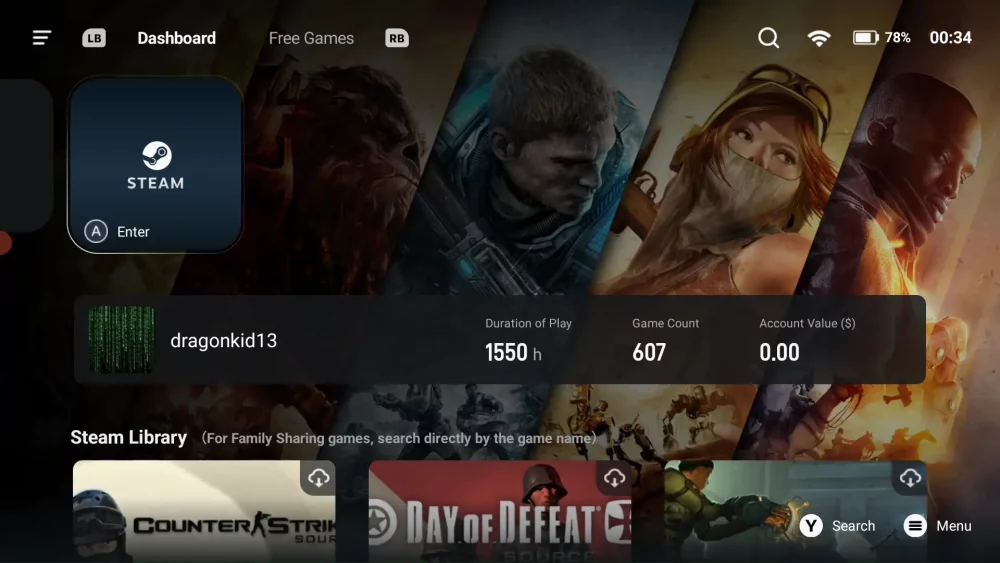
GameHub is an Android app by GameSir, a company that is mainly known for its game controllers. GameHub brings a complete environment where you can install and run Windows games on Android.
After installing GameHub you register once with your email address and receive a code to activate your account. Then you log in to Steam inside the app, see your library, download games and launch them.
Helpful features in GameHub include for example
- preconfigured cloud profiles for many games
- your own game collections
- detailed settings for CPU translation, GPU drivers and controller layouts
- monitoring for CPU, GPU, RAM and temperatures
The cloud profiles are especially interesting. For many games there are recommended settings you can apply with one click instead of tweaking every option manually.
What is GameHub Lite and how do the versions differ?
GameHub Lite is a community maintained fork of the original GameHub app. It is based on the official APK but removes a lot of telemetry libraries and unnecessary permissions. GameHub Lite also gets rid of the separate GameHub account. You only log in to Steam and that is it.
From a user perspective GameHub Lite is much slimmer, more privacy friendly and less intrusive, but you lose some of the comfort features of the official app.
GameHub vs GameHub Lite at a glance
| Feature | GameHub (official) | GameHub Lite (fork) |
|---|---|---|
| Login required | Yes, GameHub account via email | No, Steam login only |
| Telemetry and tracking | extensive analytics SDKs | removed or heavily reduced |
| App size | larger, additional libraries | much smaller, only the essentials |
| Cloud profiles for games | yes | limited or handled differently |
| Steam Cloud Saves | yes | yes |
| Permissions | many, including location and more | strongly reduced |
| Target audience | mainstream, plug and play | enthusiasts who care about privacy |
If privacy and control are important to you, GameHub Lite will probably feel better. If you want the easiest setup and do not mind the GameHub account and extra telemetry, the official GameHub app works fine as well.
- Download: GameHub (Gamesir) (Google Play Store) (Gamesir, Link with ads) (Google Play Store, Link with ads)
- Download GameHub Lite (Github) (Github, Link with ads)
GameHub Lite variants – Antutu, Ludashi, PUBG
Around GameHub Lite there are several modified builds that use different package names such as Antutu, Ludashi or PUBG. The idea behind this is that some devices and manufacturers detect certain package names and automatically switch to different power or performance profiles, which can slightly improve performance in benchmarks or some games.
Which device did I use for testing?
I tested the performance of GameHub and GameHub Lite on an Ayn Thor Max. This is an Android handheld in a clamshell design with two OLED screens and an integrated gamepad.
Ayn Thor Max – hardware overview
- CPU: Snapdragon 8 Gen 2, 8 cores, up to 3.2 GHz
- GPU: Adreno 740
- RAM: 16 GB LPDDR5
- Storage: 1 TB UFS 4.0
- Display: 6 inch 1080p OLED, 120 Hz plus secondary touchscreen
- Operating system: Android 13
Overall the Thor Max is on the level of a flagship smartphone but has active cooling, which gives the chip more thermal headroom than most phones.
Antutu benchmarks on the Ayn Thor Max
All tests were done with the fan enabled in the listed mode.
| Settings | Fan mode | Total | CPU | GPU | RAM | UX |
|---|---|---|---|---|---|---|
| Standard | Smart mode | 1,687,741 | 593,164 | 380,183 | 318,023 | 396,371 |
| Medium | Sport mode | 1,702,549 | 603,881 | 378,048 | 326,661 | 393,959 |
| High | 70% fan | 1,702,547 | 605,195 | 379,321 | 321,066 | 396,965 |
The differences are not huge, but they show that the Snapdragon 8 Gen 2 has plenty of headroom for Windows games at 720p as long as you keep the graphics settings reasonable.
Which PC games work with GameHub on Android?
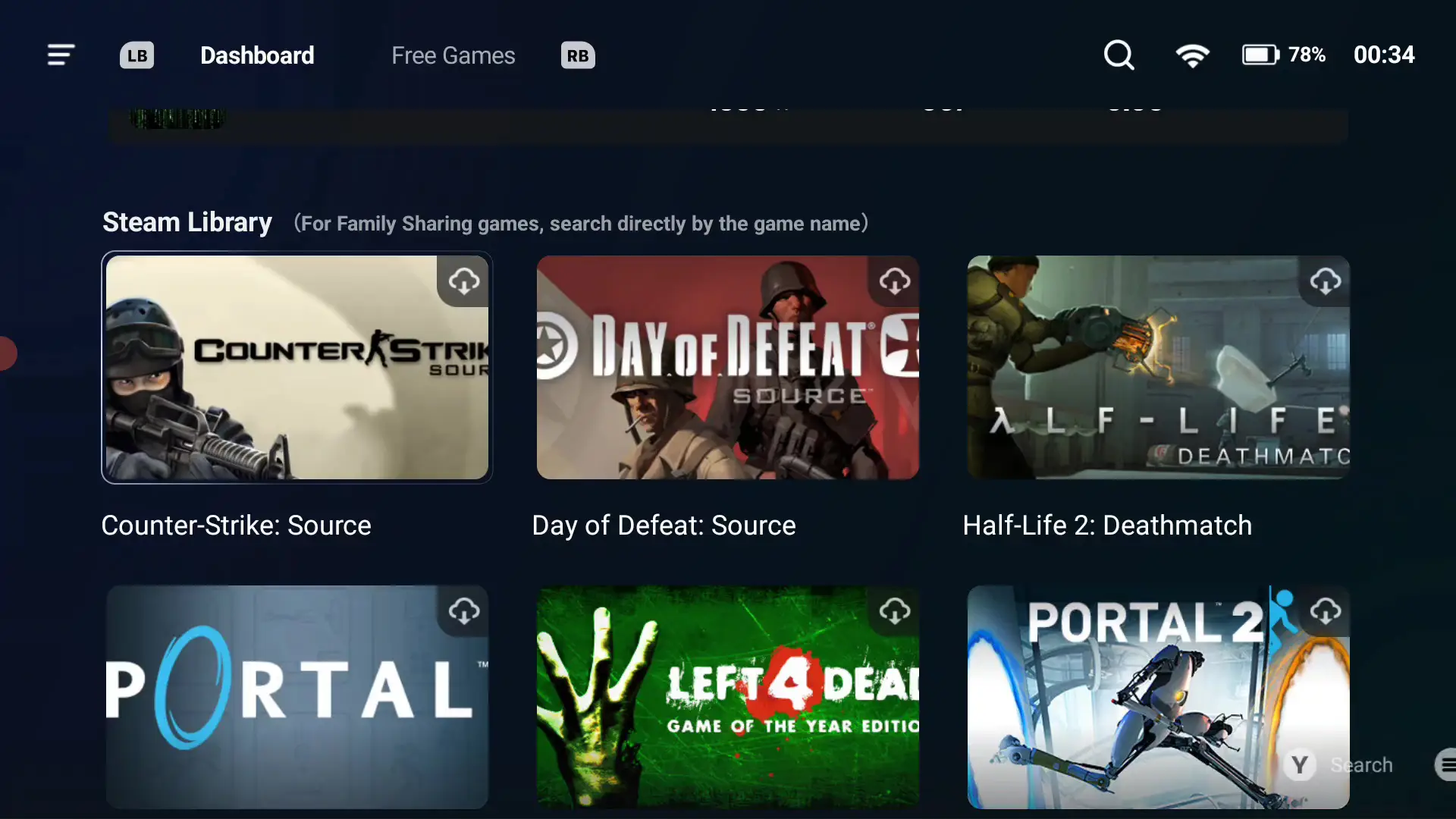
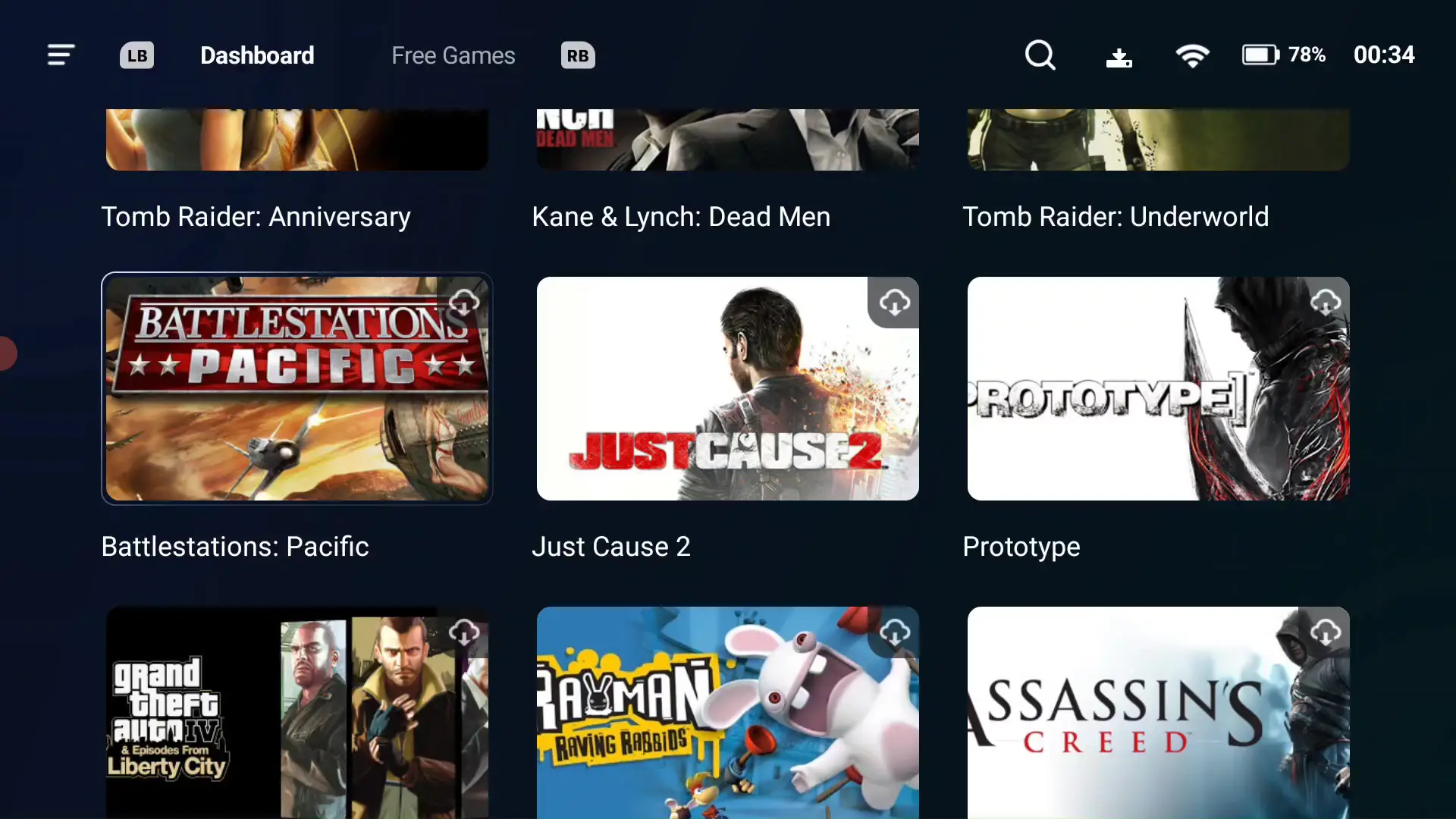
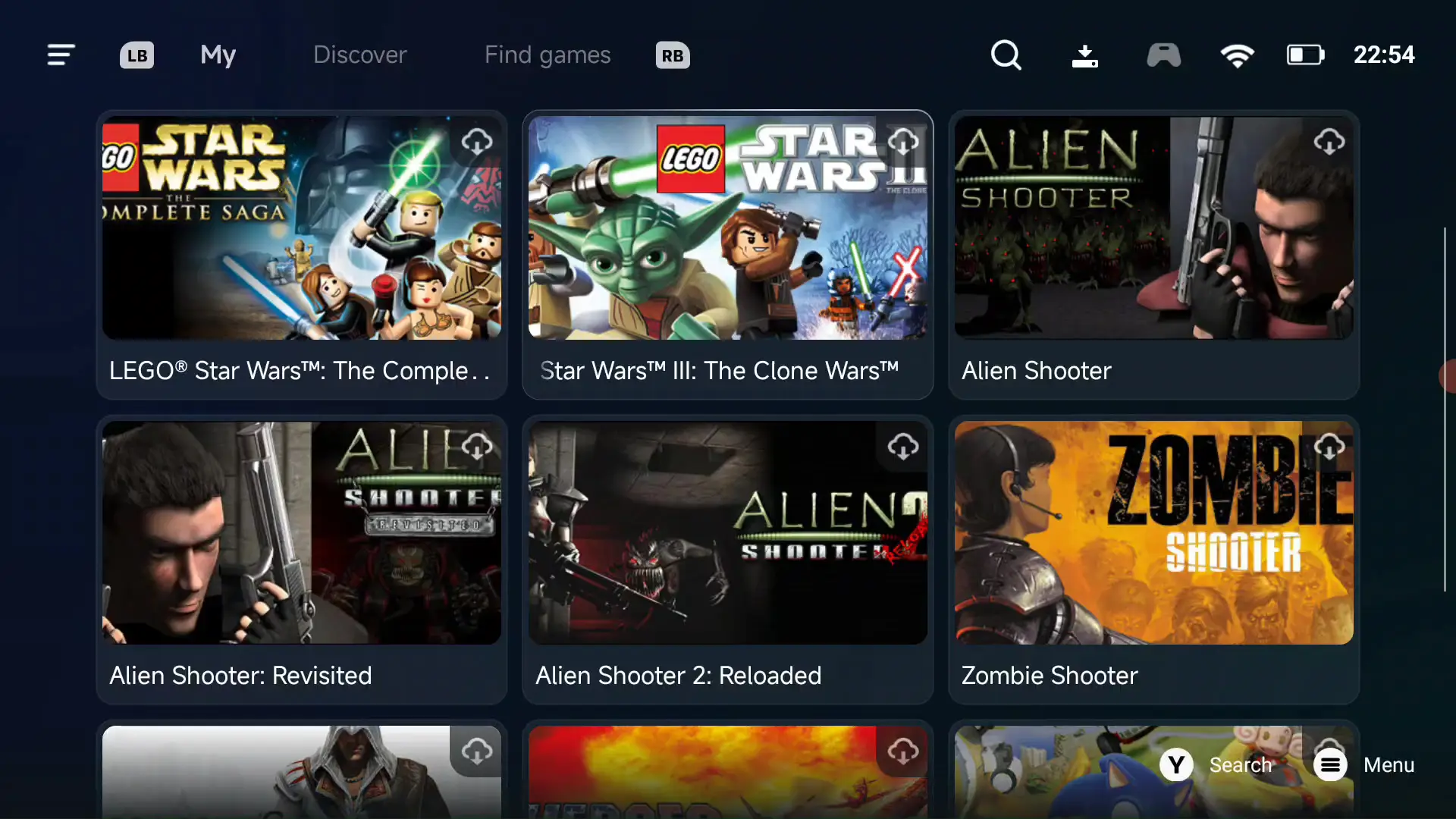
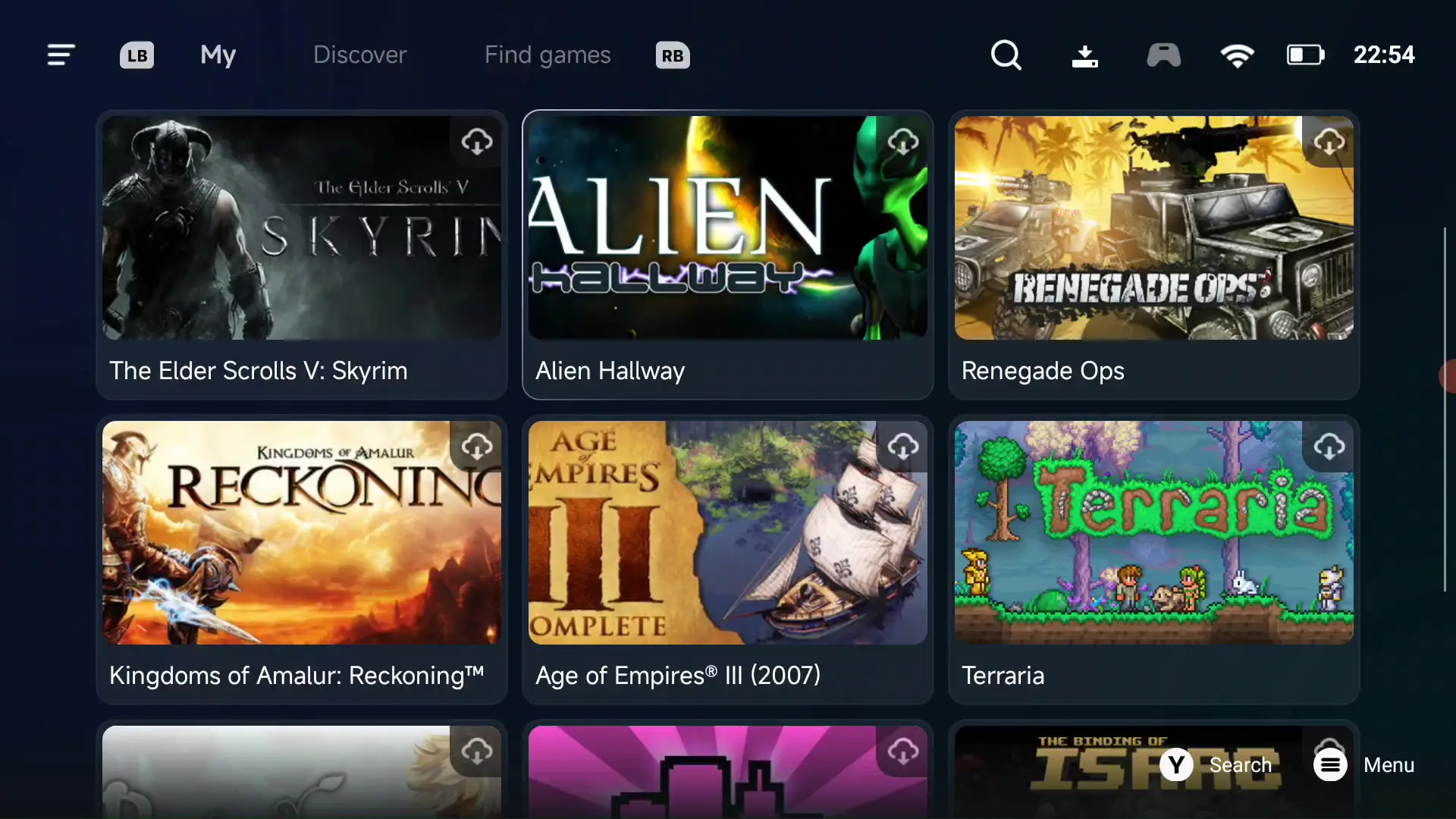
Here is an overview of the games I tested with GameHub on the Ayn Thor Max. All titles are from my own Steam library, there is no cloud gaming involved.
| Game | FPS | Notes | In game settings | Device | Device settings | YouTube video |
|---|---|---|---|---|---|---|
| Dave the Diver | 40-60 FPS | very playable | default | Ayn Thor Max | CPU medium, fan smart mode | https://www.youtube.com/watch?v=NhHrEVjP2mg |
| Marvel’s Spider Man Remastered | 5-15 FPS | unplayable, frequent crashes | default | Ayn Thor Max | CPU medium, fan smart mode | https://youtu.be/NbYYumWWnOw |
| Digimon Story Cyber Sleuth / Hacker’s | 30-50 FPS | 720p gives 30-40 FPS, 480p gives 40-60 FPS | default | Ayn Thor Max | CPU medium, fan smart mode | https://youtu.be/5pLQE-bgIns |
| Dragon Quest XI | 25-45 FPS | 720p | default | Ayn Thor Max | CPU medium, fan smart mode | https://youtu.be/V60d8rDjmoY |
| Super Meat Boy | 60 FPS | 720p, audio bug on the Ayn Thor Max | default | Ayn Thor Max | CPU medium, fan smart mode | https://youtu.be/51eoaVYN49Y |
| Digimon Story Time Stranger | – | does not start | default | Ayn Thor Max | CPU medium, fan smart mode | https://youtu.be/rLv95rlxB2k |
| Hades 1 | 60-100 FPS | 720p | CPU translation performance mode | Ayn Thor Max | CPU medium, fan smart mode | https://youtu.be/T1O2xKdAGmE |
| Hades 2 | 70-100 FPS | 720p, low graphics settings | CPU translation performance mode | Ayn Thor Max | CPU medium, fan smart mode | https://youtu.be/9uFbhw6gEAc |
| Portal 1 | 60-120 FPS | 720p, gamepad did not want to work correctly | CPU translation performance mode | Ayn Thor Max | CPU medium, fan smart mode | https://youtu.be/yX1hyR1D2YM |
| Subnautica | 40-60 FPS | 720p, low graphics settings | CPU translation performance mode | Ayn Thor Max | CPU medium, fan smart mode | https://youtu.be/EsJHWzbDWzo |
| Subnautica Below Zero | 40-60 FPS | 720p, low graphics settings | CPU translation performance mode | Ayn Thor Max | CPU medium, fan smart mode | https://youtu.be/EiszvdviAPM |
| Hot Wheels Unleashed | 30 FPS | 720p, low graphics settings | CPU translation performance mode | Ayn Thor Max | CPU medium, fan smart mode | https://youtu.be/6yLPxtB38C0 |
| The Binding of Isaac Rebirth | 60 FPS | 720p | CPU translation performance mode | Ayn Thor Max | CPU medium, fan smart mode | https://youtu.be/ka8J9sYfKgo |
| Liftoff FPV Drone Simulator | 20-30 FPS | 720p, low graphics settings | CPU translation performance mode | Ayn Thor Max | CPU medium, fan smart mode | https://youtu.be/RYckEgD6zIk |
| The Witcher 3 Wild Hunt | 6-9 FPS | 720p, low graphics settings, basically unplayable | CPU translation performance mode | Ayn Thor Max | CPU medium, fan smart mode | https://youtu.be/bfXLeIoaelM |
| Frostpunk | 20-40 FPS | 720p, low graphics settings | CPU translation performance mode | Ayn Thor Max | CPU medium, fan smart mode | https://youtu.be/ayEEdwEEH_w |
| Torchlight 3 | 10-20 FPS | 720p, low graphics settings | CPU translation performance mode | Ayn Thor Max | CPU medium, fan smart mode | – |
| Slime Rancher 2 | 20-30 FPS | 720p, low graphics settings | CPU translation extreme mode | Ayn Thor Max | CPU medium, fan smart mode | – |
| Palworld | 10-25 FPS | 480p, low graphics settings | CPU translation extreme mode | Ayn Thor Max | CPU medium, fan smart mode | https://youtu.be/umTH1IpzOF4 |
| Spyro Reignited Trilogy | 40-80 FPS | 720p, low graphics settings | CPU translation extreme mode | Ayn Thor Max | CPU medium, fan smart mode | https://youtu.be/pKS3Z3sjpyI |
| NieR Automata | 30-60 FPS | 720p, low graphics settings | CPU translation extreme mode | Ayn Thor Max | CPU medium, fan smart mode | https://youtu.be/9poin8x7U0U |
| Dragonball Xenoverse | 20-40 FPS | 720p, low graphics settings | CPU translation extreme mode | Ayn Thor Max | CPU medium, fan smart mode | https://youtu.be/TsnxfbOz3VM |
| Cult of the Lamb | 35-70 FPS | 720p, low graphics settings | CPU translation extreme mode | Ayn Thor Max | CPU medium, fan smart mode | https://youtu.be/RgwJFM71IB4 |
In short
- 2D games, roguelikes, indie games and older 3D titles usually run very well.
- Demanding AAA games like The Witcher 3 or Spider Man can start but are more proof of concept than truly playable right now.
- 720p resolution and low settings give you the best chance of a stable frame rate.
Performance tips and common pitfalls
A few practical tips from my tests with GameHub and GameHub Lite on Android
- Lower the resolution. 720p instead of 1080p often gives a big boost in FPS.
- Set CPU translation to performance mode. Many games profit from this setting. It can increase power draw, but in my tests stability was still fine.
- Try newer Turnip drivers. Fresh builds can noticeably improve Vulkan performance.
- Do not forget the fan. On the Ayn Thor Max you should run the fan in smart or sport mode. Otherwise the Snapdragon will throttle too early.
- Check your gamepad mapping. Not every game detects the controller correctly. Sometimes another controller mode or remapping inside GameHub solves it.
What is Obtainium and why is it useful for GameHub Lite?
If you install GameHub Lite from GitHub or other sources instead of the Play Store, you probably do not want to manually check for updates all the time. This is where Obtainium becomes very handy.
Obtainium (Github) (Github, Link with ads) is an open source app that keeps track of releases for Android apps directly from their release pages, for example on GitHub or GitLab. You add a project, Obtainium checks for new versions and can download and install them for you.
With this you can keep GameHub Lite, Turnip driver builds and other tools up to date without manually hunting APKs every week.
What is Valve Lepton and how is it related to Waydroid?
Proton already showed how powerful a good compatibility layer for games can be. Valve is now working on a similar concept for Android apps called Lepton.
Lepton is an Android compatibility layer for Linux and SteamOS. The goal is to run Android apps and games on Linux, similar to how Proton allows Windows games to run on Linux. Lepton builds on technologies from the Waydroid project. Waydroid runs a full Android system inside a container on Linux and can display Android apps in normal desktop windows.
For GameHub users this is exciting for two reasons
- Valve is heavily investing in technologies that connect Windows, Linux, Android and ARM. Proton, FEX and Lepton are all pieces of the same puzzle.
- The more games and engines are properly optimized for Vulkan and these compatibility layers, the better they will run long term in solutions like GameHub on Android.
Right now Lepton runs on Linux and SteamOS, not on Android. In the long run it could still help to create an ecosystem where PC games, Android games and different device classes move closer together.


